
If you’ve been struggling with slow iCloud sync or just want a more reliable way to keep your Obsidian vault backed up and accessible across devices, this guide is for you. I’ll walk you through setting up the Remotely Save plugin with OneDrive Personal — something I haven’t seen covered clearly anywhere else online.
Why Remotely Save + OneDrive?
Obsidian stores everything locally on your device, which is great for privacy but means your notes aren’t automatically backed up or synced. While Obsidian offers its own paid sync service, there’s a free and equally powerful alternative: the Remotely Save community plugin.
This guide works for both iOS and Android users, but if you’re on iPhone like me, you’ve probably run into a frustrating problem: iOS naturally pushes everything toward iCloud, making it difficult to sync Obsidian with OneDrive the way you actually want. Every time you try to set it up, iCloud gets in the way and causes duplicate files, slow syncing, and general headaches.
That’s exactly why I put this guide together. By using the Remotely Save community plugin, you can bypass that limitation entirely and sync your Obsidian vault directly to OneDrive — reliably, automatically, and with full encryption.
- Fast, reliable sync on Windows
- Access to your notes from any device
- End-to-end encryption for privacy
- Automatic syncing in the background
⚠️ Important: All the steps below need to be completed on both your phone and your PC. The plugin must be installed and configured on each device separately for the sync to work properly between them.
Let’s get into it.
Step 1: Installation
First, you need to install the plugin from inside Obsidian.
- Open Settings (gear icon, bottom left)
- Go to Community Plugins → make sure restricted mode is off
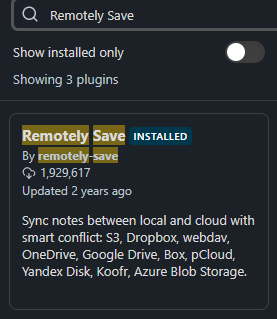
- Click Browse and search for “Remotely Save”
- Click Install, then Enable
The plugin has nearly 2 million downloads and is one of the most trusted community plugins in the Obsidian ecosystem.
Step 2: Configuration
Once installed, it’s time to connect it to your OneDrive account.
- Go to Settings → Remotely Save to open the plugin settings
-
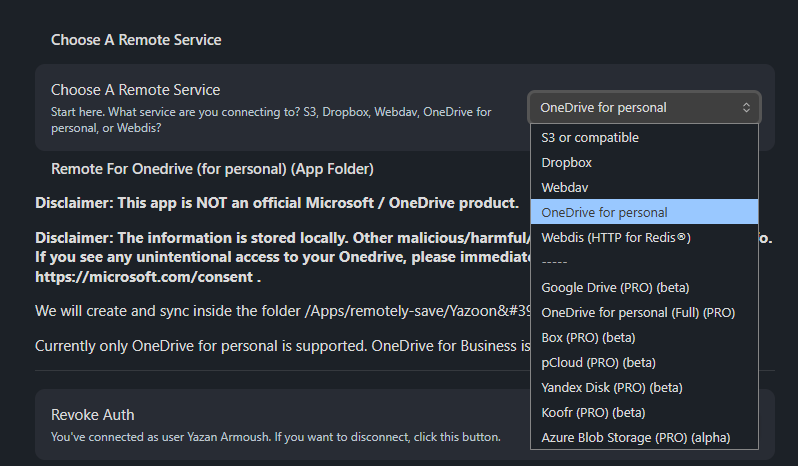
Under Choose a Remote Service, select OneDrive (Personal)
Make sure to select Personal — not Business/SharePoint, which requires a different setup
- Scroll down to Auth / Revoke Authentication and click it
- A browser window will open — sign in with your Microsoft account to authorize the connection
-
Once signed in, scroll back and click Check Connectivity
You should see a confirmation message appear at the top of the screen — this means your vault is successfully linked to OneDrive ✅

Step 3: Encryption
This is an important step that most people skip — don’t.
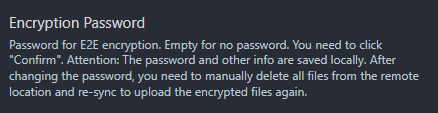
- Scroll down to Encryption Password
-
Set a strong password — this will encrypt every file before it’s uploaded to OneDrive
Even if someone gains access to your OneDrive, they won’t be able to read your notes without this password
- ⚠️ Save this password somewhere safe. You can use any password manager you prefer.
Step 4: Auto Sync Settings
Now let’s set up automatic syncing so you never have to think about it.
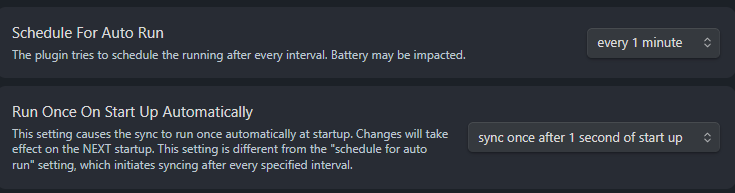
- Scroll down to Schedule for Auto Run
- Set the interval to every 1 minute — this ensures your notes are almost always up to date
- Enable Run Once on Start — syncs your vault as soon as Obsidian opens
- Enable Sync Once After 1 Second of Startup — catches any changes made while Obsidian was closed
With these settings, your vault will sync automatically in the background without you having to do anything manually.
Step 5: Manual Sync (When You Need It Immediately)
Sometimes you make an important change and want to push it to OneDrive right away without waiting for the auto sync. You have two options:
- Click the sync icon in the left sidebar of Obsidian (it looks like two arrows in a circle)
- Or open any note → tap the three dots (bottom right) → select Remotely Save to trigger an immediate sync

Final Thoughts
Setting this up takes less than 5 minutes and completely transforms how reliable your Obsidian sync is. No more duplicate files, no more waiting 2 minutes for a tiny change to push through — just clean, fast, encrypted syncing through OneDrive.
If you found this helpful, feel free to share it with anyone in the Obsidian community who’s been struggling with sync.