What is n8n?
If you work in IT or security, you’ve probably heard of Zapier or Make. n8n is in that same category — it’s a workflow automation tool that lets you connect apps and services together to automate repetitive tasks. The difference is that n8n is open source, and you can self-host it completely. Your data stays on your infrastructure, which as a security professional, matters.
The way it works is simple. You build workflows made up of nodes. Each node does one thing — fetch an RSS feed, send a Slack message, run an AI summary, execute a command. You connect the nodes together and the data flows through them automatically.
It has integrations for almost everything: Gmail, Slack, Discord, Notion, open AI models, SSH, command line, and hundreds more. If a native integration doesn’t exist, you can build your own with an HTTP request node.
For this post, we’re going to build a practical workflow: an automated daily security news digest that pulls from RSS feeds and delivers a summary to Discord or your inbox.
Getting Started: How to Run n8n
There are a few ways to run n8n but the easiest by far is using Hostinger’s dedicated n8n VPS. This is what I use and it takes about 5 minutes to go from nothing to a running instance.
Step 1 — Go to Hostinger and Find the n8n VPS Option
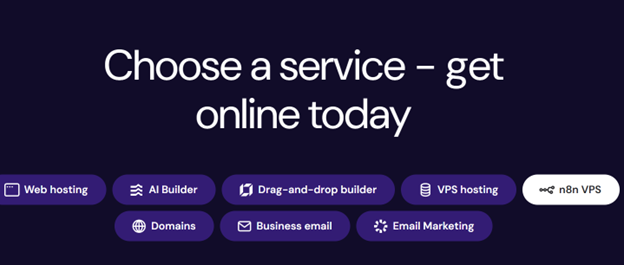
Head to hostinger.com, go to Services → VPS Hosting, and look for the n8n option. Hostinger has a dedicated n8n VPS plan that spins up a KVM virtual machine with n8n pre-installed — you don’t need to touch Docker, Linux, or any configuration files.
Step 2 — Choose Your Plan and Check Out
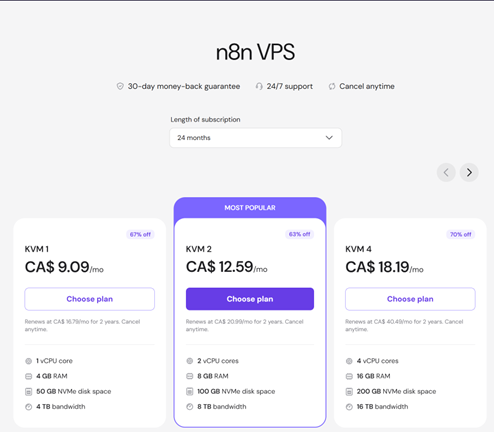
Select the plan that fits you. The KVM 2 plan is solid for running n8n alongside other tools if you want to expand later. Go through the checkout flow and complete your purchase.
Step 3 — Access Your VPS Panel
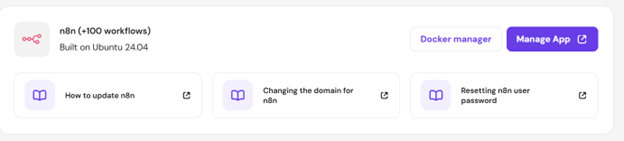
Once your VPS is provisioned, go to your Hostinger dashboard and open your VPS. You’ll see a Manage App button — click that. It takes you directly to your n8n instance running on your own server.
Step 4 — Create Your n8n Account
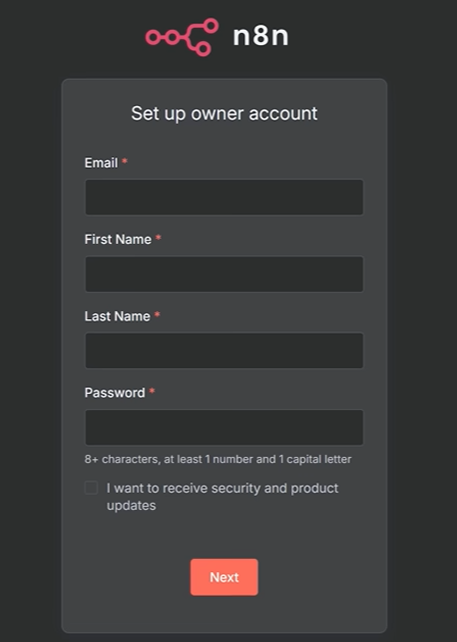
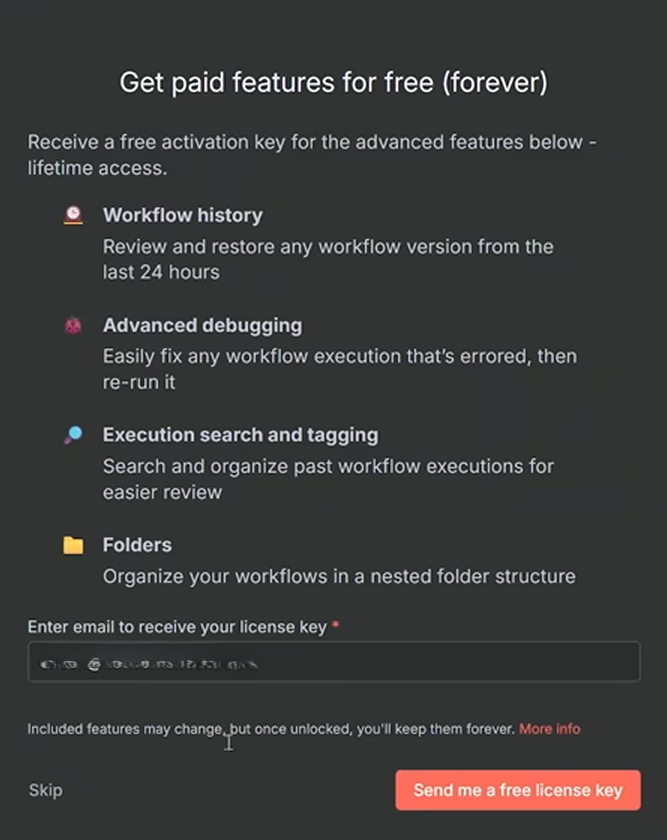
You’ll land on the n8n signup page for your self-hosted instance. Create your account here — this is your personal n8n, not a shared cloud service. Fill in your details, skip anything optional, and grab the free activation key it offers. Check your email for the key, then enter it under Usage and Plan.
Step 5 — You’re In
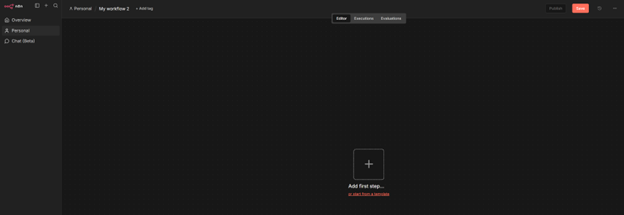
That’s it. You now have a fully self-hosted n8n instance running on your own VPS. No usage limits, no per-task pricing, and your data stays on your own infrastructure — which matters when you’re automating anything security related.
Understanding the Basics
Before building anything, here are the three things you need to understand.
Triggers
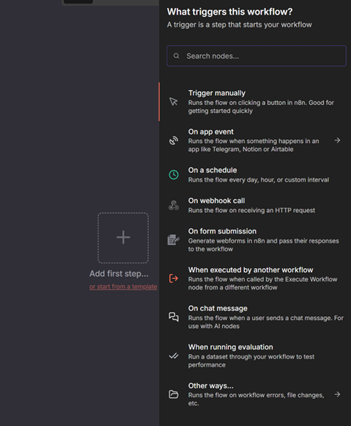
A trigger is what starts your workflow. When you create a new workflow in n8n and click the + button to add your first step, the first thing it asks you is “What triggers this workflow?”
You have several options:
- Trigger manually — runs the workflow instantly when you click a button inside n8n. This is your best friend when testing and building. You’ll use this constantly.
- On a schedule — runs the workflow automatically every day, hour, or at a custom interval. This is what we’ll use for our daily security news digest.
- On webhook call — triggers when an external service sends an HTTP request to n8n. Useful when you want other tools to kick off your workflow.
- On app event — fires when something happens inside an app like Telegram, Notion, or Airtable.
- On chat message — designed for AI-powered workflows where a user sends a message to trigger a response.
For most workflows, you’ll be choosing between manual for testing and schedule for production.
Nodes
Once a trigger fires, nodes do the actual work. Each node performs one specific action — fetch an RSS feed, filter results, summarize with AI, send a Discord message. You connect them together in sequence and n8n moves your data through each step automatically.
Think of it like an assembly line. The trigger starts the line, and each node along the way does something to the data before passing it to the next one.
Data Flows Left to Right
Whatever a node outputs becomes the input for the next node. n8n represents all data as JSON, so as you build more workflows, you’ll naturally get comfortable reading it. The good news is you don’t need to write JSON manually — n8n lets you drag fields from one node directly into the next one.
That’s the entire mental model. Trigger → Nodes → Output. The rest is just learning which nodes do what.
Building the Workflow: Daily Security News Digest
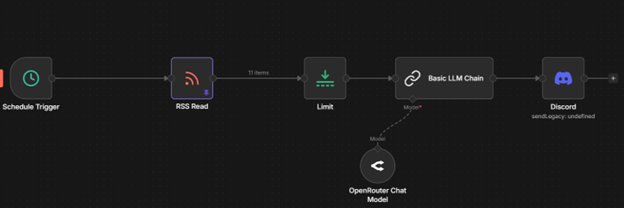
Here’s what we’re building: a schedule trigger fires every morning → pulls articles from security RSS feeds → limits to the top 5 → sends them to Discord with a clean format.
Step 1 — Create a New Workflow
In n8n, click New Workflow in the top right. Give it a name like Security News Digest.
Step 2 — Add a Schedule Trigger
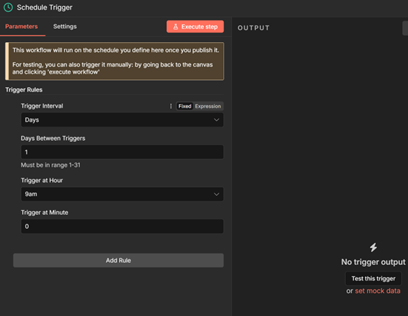
Click the + button to add your first node. Search for Schedule Trigger. Set it to run once a day at whatever time you want — 9am works well.
This is what kicks off the workflow automatically without you touching anything.
You can also add a Manual Trigger alongside it. This lets you test the workflow on demand without waiting for the schedule to fire. Both triggers can connect to the same next node.
Step 3 — Add an RSS Feed Node
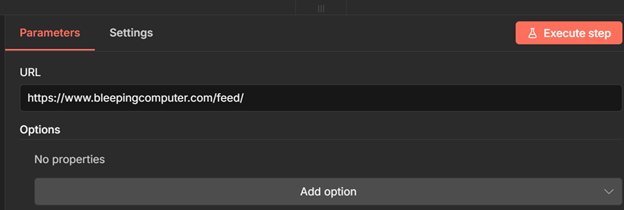
Add a new node and search for RSS Feed Read. In the URL field, paste the feed you want to pull from.
Good security RSS feeds to start with:
- Bleeping Computer:
https://www.bleepingcomputer.com/feed/ - Krebs on Security:
https://krebsonsecurity.com/feed/ - The Hacker News:
https://feeds.feedburner.com/TheHackersNews - CISA Advisories:
https://www.cisa.gov/cybersecurity-advisories/all.xml
Click Execute Step to test it. You’ll see it pull in a list of articles as JSON — each one has a title, link, creator, publication date, and content field.
Step 4 — Limit the Results
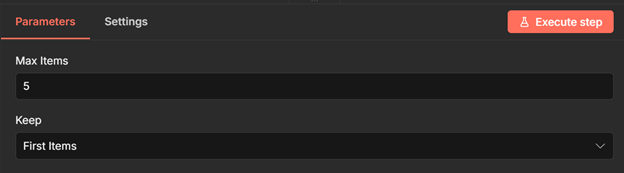
RSS feeds typically return 10–20 articles. You probably don’t want all of them. Add a Limit node and set it to 5. Connect it after your RSS node.
This keeps the digest manageable.
Step 5 — Send to Discord
Add a Discord node and select Send a Message. For the connection type, choose Webhook.
To get a webhook URL from Discord:
- Open your Discord server and create a channel (e.g.
#security-news) - Go to Server Settings → Integrations → Webhooks
- Create a new webhook, point it at your channel, and copy the URL
Paste that URL into n8n as a new credential and save it.
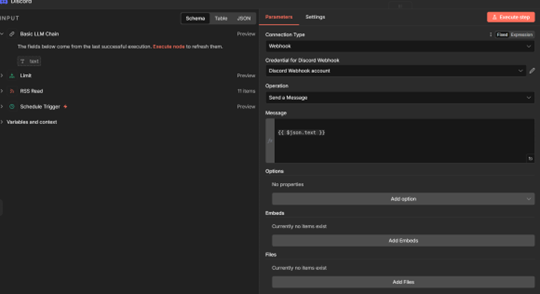
Now configure the message. Pull in the actual article fields by dragging them from the previous node’s output into the message body. Include the title, link, creator, and publication date.
n8n uses `` syntax to reference data from previous nodes. As you drag fields in, it builds the expression for you.
Step 6 — Test the Full Workflow
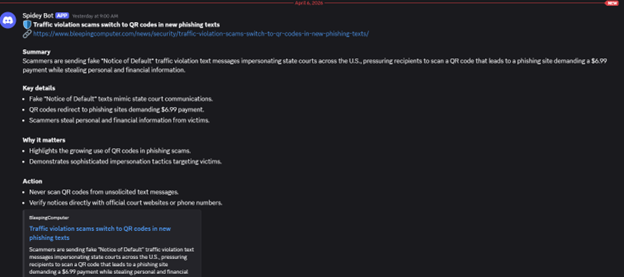
Click the play button on the canvas to run the whole thing end to end. Check your Discord channel — you should see 5 articles delivered in a clean format.
Save your workflow and click Activate in the top right. It’ll now run automatically on your schedule.
Taking It Further: Add AI Summarization
Once the basic workflow is running, the natural next step is adding AI to summarize the articles before they hit your inbox.
Between the Limit node and Discord, add a Basic LLM Chain node. Connect an AI model to it — n8n supports OpenAI, Anthropic, local Ollama models, and others that are free as well.
Set the prompt to something like:
Summarize this article in two sentences. Focus on what happened and why it matters to a security professional.
Then pass in the article content field. The AI will process each article and output a short summary, which you then include in your Discord message alongside the title and link.
For local/self-hosted setups, Ollama with Llama 3 works but has a smaller context window. If the articles are long, a frontier model like GPT-4o Mini gives noticeably better summaries.
What Else Can You Do?
This workflow is intentionally simple. Once you have the basics down, you can extend it in a lot of directions:
- Pull from multiple RSS feeds and merge them before filtering
- Add an AI node that rates each article by relevance to your role and only sends the ones worth reading
- Track YouTube channels via their RSS feeds (every channel has one) and get notified when new videos drop
- Connect to Microsoft Teams or Slack instead of Discord if that’s where your team lives
- Build a second branch that runs a ping or health check and includes the result alongside your news
The building blocks are all the same. Trigger, fetch, filter, format, deliver.
Final Thoughts
n8n is one of those tools that feels simple on the surface but gets powerful fast. For security professionals specifically, the ability to automate information gathering and pipe it through AI before it reaches you is genuinely useful. Less time manually checking feeds means more time for actual work.
Start with the news digest workflow. Get comfortable with how data flows between nodes. Then start building more complex automations from there.
I’ll be posting more n8n workflows focused on security use cases on this site, including SIEM integrations and threat intel pipelines. Stay tuned.